If someone missed the latest update Ver 0.3.2.5(13.12.2020) this APK version brings Amazfit Band5 device support.
This band has almost the same features and price as MiBand5 from Xiaomi. But Amazfit Band5 has some extra features which can be useful.
AMAZON ALEXA BUILT-IN: Talk to Amazon Alexa on your Amazfit Band 5. Ask questions, get translations, set alarms, and timers, create shopping lists, check the weather, control your smart home devices and more.
BLOOD OXYGEN SATURATION MONITOR: With Amazfit Band 5 you can measure your blood oxygen saturation and understand your physical state with OxygenBeats. Ideal during high-intensity workouts and sports such as marathons and gym workouts.
The configuration for this device is the same as for MiBands . The only difference is that you should use the latest patched “Zepp” application from https://www.freemyband.com/ to generate an authorization code.
Please note, you should use "Miband" menu for Amazfit Band5, GTS2 Mini, GTR2, GTS2, BIP S, BIP, GTR(not "Amazfit" menu which is for Amazfit devices based on Wear OS )
Hello to all. I’m glad to announce the release of a new version of xdrip. It has a lot of changes suggested by patrons. I hope you enjoy them. Special thanks for patrons Monoid, kyungmee Yoo, mzst 123, Lukas Petro, Alberto HD,Otto75so3e, Michalis Velonakis whos supported this project. Their contributions were spent to buy a new MiBand5 and implement miband 5 integration and to improve xdrip features.
Please note, this is a beta xdrip version. If there are no issues, the pull request will be sent to the official xdrip application.
The configuration for MiBand5 was left unchanged. And has the same procedure as for MiBand4. (just make sure you use an updated patched MiFit v4.2.0)
New watchface legend for MiBand5
The MiBand4 have the same watchface except it has missing weather information
Xdrip miband integration apk changelog
If you like this project and want to thank an author for work done or want to support further development of features, become a sponsor on Patreon
If you have some advices regarding features that you want to see, or want to see similar feature on some specific band type, please write them in the comment of the donation form.
Synchronized with the latest official xdrip nightly build. (Support of the direct connection with libre 2 )
Ver 0.3.2.5(13.12.2020)
New. Added support of Amazfit Band5 device.
New. Collecting step data from the band. This option can be enabled in the “General settings” menu (The pool intervals defined by third-party applications like MiFit. See heart rate configuration ).
New. Send alarm missing notification if the alarm were missed(not dismissed or snoozed).
New. The band setting was reorganized. Removed device-specific settings from the miband settings (features and screens) menu because they potentially can conflict with mifit and other applications that can communicate with the band. All those settings can be configured in third-party applications.
New. Update watchface after alarm if nightmode active.
Fix. Alarm hangs on “WAITING_USER_RESPONSE” state when night mode active.
Fix. Heart rate collection on new band firmware. Hear rate update interval can be configured in MiFit () or any third-party application. To see heart rate data in xdrip, the options “Use Health Data” and “Heart Rate sensor” which is located in Settings -> Smartwatch Features -> Smartwatch sensors, should be enabled.
Synchronized with the latest official xdrip nightly build.
Ver 0.3.2.4(23.11.2020)
Fix. Nigthmode feature does not work
Synchronized with the latest official xdrip nightly build (bluetooth connection on android 10 should be fixed. But if you still expierence a bluetooth connection issue, please try to enable “Minimize Scanning” and “Avoid Scanning” options in xdrip settings )
Ver 0.3.2.2 (18.11.2020)
Fix. Incorrect nigtmode timer calculation which leads to continious watchface update during nightmode (every 2-5 seconds )
Ver 0.3.2.1 (01.10.2020)
Fix. The watchface can stop updating if there were connection issue during wathcface update.
Fix. Replace graph BG value representation from lines to dots (like in xdrip apk).
Ver 0.3.2 (09.09.2020)
Fix. MiBand5 Watchface uploading issue on some phones
Removed. Send readings as a notification option. Now For MiBand 2 and 3 the readings would be sent as notification. For MiBand 4 and 5 would be used watchface uploading.
Removed. Call notifications. For call notifications use MiFit or any thirdparty apk.
Debug. I order to simplify debugging, this version has a modified feedback recipient address. The xdrip log reports would be sent directly to my private server. If you have some issues please send me the logs so i can analyze them and suggest some solution. The logs can be sent via xdrip events logs interface. Before sending logs, please make sure you have added “MibandService:d” text (without quotes) in xdrip Settings->Less common settings-> Extra logging -> Extra tags for loggings . After this go to “Less common settings” -> View recent error interface. Leave enabled only “Low”, “Mid” and “High” checkboxes And click to “upload logs” button. If possible, in the feedback description text specify the approximate time when this error happens
Ver 0.3.1 (31.08.2020)
Fix. Use the same graph height and offset for all band screens and modes (required to correctly position “no connection” layers )
Fix. Graph display changes. Display prediction line even when there no treatments available.
Fix. Graph display changes. Display high and low lines under the bg line.
Fix. In rare cases, the wathface can stop updating (usually happens when Bluetooth connection lost while sending the nightmode )
I’ve decided to improve miband integration, and change the method which was used to represent glucose data for MiBand4. Instead of the date modifying and using a custom watchface which interpreter a custom date format in correct way, i will generate entire watchface with a dynamic background and upload this watchface to the band. By using this method, all the disadvantages of changing the date on the watch will disappear, and your watch will be fully functional. So it would be possible to use it with any program, and all band features like weather, music control, fitness progress, and more would work.
In addition, this method allowing to display any data on the watch screen.
Upd. 29.01.2020
I’ve finished a new xdrip version . Would be grateful if someone can help to test it on different miband versions.
If this version would be stable, i’ll create a pull request for the official Xdrip apk version. So there would be a chance this patch would be added to the official aplication.
Upd. 29.04.2020
Great news! The pull request was recently approved and merged into official xdrip application. At the moment it is available in the latest nightly build xdrip version which can be downloaded from the following URL https://github.com/NightscoutFoundation/xDrip/releases
New watchface legend
Since v0.2.3 it is outdated watchface view
Real view on miband4 and v0.2.4 with enabled graph and bolus
Configuration tutorial by steps for v 0.2.x and higher
1. Obtaining auth key
If you want to use xdrip with Mi Band4, Mi Band5 or Amazfit Band5, you need to get Mi Band Auth key (for MiBand2 and Miband3devices, you can skip this step). The Auth key can be obtained with these simple steps (was copied from https://www.freemyband.com/ )
Unpair band from the existing official app
Uninstall official app
1. For MiBands. Download and install the modified Mi Fit application
2. For Amazfit. Download and install the modified Zeppapplication
Login into the Mi Fit(or Zepp in case of Amazfit) with your email account
Pair the band
Enable band visibility in the MiFit(or Zepp) settings. If you don’t have this option, make sure you have set your age in the account to be over 18 years old.
(optional) Now you can uninstall modified Mi Fit (or Zepp) application and install official application or any other APK you like to use together with MiBand. If you would use official Mi Fit(or Zepp) application, you would need to Login into the Mi Fit(or Zepp)with the email which was used with the patched application.
Finished! You can find your Auth key on /sdcard/freemyband folder of your phone
Notice
1. If you reset (MAC address of band change) or unpaired your band, the Auth key need to be calculated again. The miband will change the MAC address, so you should change mac and auth key in xdrip(for auto search you can clear mac address and auth key fields) 2. The modded mifit apk is compatible with any firmware version installed on your band 3. You can do this procedure with any phone (if your phone doesn’t allow install apk outside Play Store, you can ask your friend to obtain this auth code for you)
2. xdrip configuration. Connecting to miband
If you have original xdrip application installed on your phone, you would need to delete it. To save all your existent settings and glucose history, you can export your current database into file. To do this, click to the 3 dots on the main xdrip screen, select Import/export feature -> export database.
Install latest patched xdrip from this link xdrip-miband. If you had a database backup, you can restore it by using export/import feature mentioned earlier.
If you skipped “Obtaining auth key” phase (only for miband 2 and 3), go to MiFit settings, and enable band visibility.
Place miband near the phone.
Go to xdrip Settings -> Smart watch features -> MiBand and enable option “Use MiBand” for both MiBand and Amazfit.
Normally miband should be automatically found, and you will see a notification with your model name. If this happen, you can skip next step.
If it wasn’t found automatically, make sure the band visibility option was enabled in MiFit, then disable “Use MiBand” option and repeat step three. You can also enter the mac addres manually (in this case, there no need for visibility option enabled).
Now the miband should be connected, but it is required authentification. On MiBand2 and MiBand3, you should approve authentification by touching the miband button. For MiBand4, MiBand5or Amazfit Band5 you don’t need to do anything. Normally auth key should be automatically extracted from the file /sdcard/freemyband which was generated by patched Mi Fit(or Zepp) application. But if it was not generated, you should manually enter the key in “Auth key” field and retry everything from step 4.
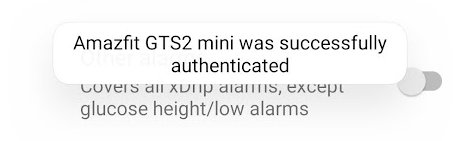
Finally, you should see the message that your device was successfully authenticated.
3. xdrip configuration. General settings and installing glucose watchface
3.1. Configuration for MiBand4, MiBand5 or Amazfit Band5
Upd (30.12.20 )The “BG readings as notification” was removed in Ver 0.3.2 (09.09.2020) So now For MiBand2 and 3, the readings would be sent as notification. For MiBand4,5 and Amazfit Band5 would be used watchface uploading.
If you use a MiBand4, you can receive a glucose readings in two ways
In standard miband way by using the text notifications
Displaying glucose values on the main band screen with help of dynamical custom watchface..
When use a text notification, xdrip would send a message to the miband after every glucose reading.
When use a “dynamical custom watchface” the xdrip will generate a new watchface after every reading and will send this watchface to the miband. This option available only for MiBand4. All miband features would work as before. The watchface with required measurement units (mmol or mg/dl ) would be automatically installed. It would use the units from the general xdrip settings.
The option “BG readings as notification” in MiBand settings allow to controll the way you prefer to receive glucose values. When it is enable , you would receive notifications after every glucose readings. And when it is disabled, this fancy “dynamical custom watchface” would be used.
You can also enable option Send alarms to receive glucose low/hight alerts. If you enable this option, you would get bg alerts as a phone call. Instead of the caller number, you would see an alarm text with the current glucose value. During alarm notification, it is possible to push on the ignore button on you band to skip alarm or push on hangup button to snooze alert. The low/high alarms can be configured directly in xdrip general settings
It is also possible to enable night mode feature (in miband screens/ features menu) This feature allow to decrease glucose synchronization interval by specifying interval value and mode start/end time. This mode allow to improve miband battery life by reducing synchronization frequency.
Since v 0.2.4 it is possible to display bolus on the band (if this information present in xdrip). The bolus data can be displayed only when graph option enabled.
Finally to send reading to the see miband you should enable “Send reading” option
Notice
1. Keep your watch nearby with your phone, while phone transmitting data (actually the real BlueTooth connection distance can be even up to 50 meters 🙂 ) If your band will lost connection with the phone while transmitting watchface, it will automatically will use default watchface. This watchface would be replaced again after connection would be established 2. Take a note to the bluetooth connection status and last synchronization date to make sure you see not outdated data. Always remember to 3. The band will not accept a new watcface if battery level is less then 10%. In this case the band will automatically switch to notification mode.
3.2. Configuration for MiBand2 and 3
The only possible way to receive bg values on these band versions is to receive them as a text notification. Such notification would be sent to miband after every reading.
Xdrip miband integration apk changelog
If you like this project and want to thank an author for work done or want to support further development of features, become a sponsor on Patreon
If you have some advices regarding features that you want to see, or want to see similar feature on some specific band type, please write them in the comment of the donation form.
Fixed App Crash at the settings screen on the first run.
Ver 0.2.4 (10.03.2020)
New. Added option to display bolus (when enabled graph)
Fixed issue with when BG numbers were displayed without infill
For better readability, BG number size was slightly increased
Added bg prediction line on the graph (would display 30 minutes prediction line)
At this moment, most of the issues were fixed, and i added many new features so I hope this would be the latest version 🙂 I have plans to merge it into the official xdrip build (if it would be accepted)
New. Added a new watchface without graph (would be used when disabled graph)
New. Added option to collect heart rate data from miband. Update interval can be configured in MiFit or any thirdparty application. To see heart rate data in xdrip, the options “Use Health Data” and “Heart Rate sensor” which is located in Settings -> Smartwarch Features -> Smart watch sensors, should be enabled.
Improvement. Updated graph watchface view
Fixed. Authorisation issue on some miband 4 devices
New. Added option which allow to disable hight MTU (when enabled, can fix watchface sync issues which may happen on some phones, but the watchface uploading would take much more time)
New. Added possibility to install custom watchface. The custom watchface files ‘my_watchface.bin’ and ‘my_image.png’ should be placed into into ‘xdrip’ folder on your phone. “my_watchface.bin” is a normal watchface and my_image.png is a watchface background image. The background image shouldn’t have more than 128 colors. For faster delivery and longer battery life, the wathcface size should be as small as possible.
New. Added offset option for custom watchface (defines offset between top of the background image and xdrip generated data)
Watchface. Increased font size for delta and bg date.
Fix in watchface generation algorithm which should fix “black” watchfaces reported by some users.
Fix. Requesting higher MTU size and use the size negotiated by Bluetooth protocol. (should fix watchface synchronization issue).
Improvement. BG alarms now work as call. On MiBand 3 and 4 the ignore button will delay alarm, and hangup will snooze alert.
Improvement. Authentification for miband2 and 3 (no need to approve auth after disconnection).
Improvement. Decrease brightness when uploading watchface. This can significantly improve band battery life. Also makes watchface update to be not so noticeable to people around.
Improvement. Added night mode settings.
Resend BG as notification if watchface cannot be installed when the battery level is less than 10%
New algorithm to represent glucose data, which use a dynamic watchface with a custom background. This allows using all miband features. (only for MiBand4)
Like in previous versions, MiBand 2 and 3 can receive bg values as a notifications.
Updates for the this xdrip version would be discontinued.
Introduction
The miband trackers it is a very good device for usual life tracking. There’s a lot to like in Xiaomi trackers. They are cheap and small. For about $40, you get a fitness tracker that has waterproofing, a heart rate monitor, text and call notifications, sleep tracking, workout tracking, and impressive battery life with up to three full weeks, depending on usage.
But they also can be used for originally unintended things.
In my case, the band was used to display a BG low/high alert notification from xdrip application.
Unfortunately, xdrip doesn’t support this band type from the box, so need to use workarounds to receive these notifications.
But this solution has one disadvantage, to see, the current BG blood level it uses notifications, which usually updates every 5 minutes.
After the release a MiBand4, i found a cool new thing it this band version. This time Xiaomi lets us to create and upload custom watchfaces .
So a few days ago I discovered a way of changing the watch face for a custom one. And and it took me to the idea that i can create own watchface that will display the values of glucose levels directly on the main screen.
But there was a restriction in realization such watchface. Since the watchface allow to display only time, date, and some status info, I was faced with the task of encoding the values of glucose levels into the available values that miband could display.
For such purposes, the fields of the day of the month, month, and day of the week were most suitable. To display an integer bg value i used a day of the month for decimal value was used a month and to display trend arrow i use a day of the week. In such case, i can display almost any value of the glucose but with one limitation, the maximum integer value could be 18. So if glucose would be more than, 18.9 mmol/L, the watch will display the maximum value as 18.9.
I also added a mg/dl glucose units. To correctly display these units, it is required to install another watchface. For mg watchafe the minimum possible value can be 10mg/dl and maximum value 299 mg/dl.
The watchfaces were designed and compiled with help of the in WF_Builder1.0.4 program can be found here
The watchface bins and source files located by the following links:
upd. Since xdrip version 0.1.3 the xdrip should keep a continuous connection with MiBand, so when miband connected, you will be sure that you see relevant glucose value. If the miband for some reason will lose connections with the phone, you will see a lighting blue indicator in the left bottom corner of the miband so you can consider the value can be outdated.
No connection with xdrip (the glucose value can be outdated)
This version of xdrip can send a notification to miband without any thirdparty tools. Also, it encodes and set the time on miband in a specific format, which allows displaying the BG values in such way:
Also were added a set of settings, which allow to adjust some band settings and see the status.
Unfortunately, the date modification (which required for custom watchface) has own disadvantages.
It is impossible to use standard programs like Mi Fit. They continuously synchronizing time on the watchface, which leads to incorrect bg value displaying. (Note, if you would use thirparty programs, )
The band cannot count steps in a normal way. So you cannot see your fitness progress.
Since miband ver 4, the band developers introduced a new algorithm of the authentication. New devices and older devices with updated firmware require a server based pairing. So now it is required to obtain an auth key which is normally cannot be extracted from MiFit program, but there exists a workaround (see more details in configuration tutorial)
But if you still want to have all miband features such as fitness progress, steps, sleep, weather, smart alarms, music control and more, it is possible to use notifications to send glucose values (there an option in the miband setting screen which allow to send bg reading as a notification ). In such case, there is no need to install custom watchface.
Configuration tutorial by steps
1. Obtaining auth key
If you want to use xdrip with Mi Band4, you need to get Mi Band 4 Auth key (for the older devices (MiBand2 and Miband3), you can skip this step). The Auth key can be obtained with these simple steps (was copied from https://www.freemyband.com/ )
Uninstall modified Mi Fit application (If you want to use all miband features, you can install official Mi Fit application again. Login into the Mi Fit with email which was used with patched application and enable “BG readings as notification” option. But in this case would be impossible to use xdrip watchface and display bg values on main screen.)
Finished! You can find your Auth key on /sdcard/freemyband folder of your phone
Notice:
If you reset your band (MAC address of band change) the Auth key need to be calculated again. The miband will change the MAC address, so you should change mac and auth key in xdrip(for auto search you can clear mac address and auth key fields)
The mod apk is compatible with any firmware version installed on your band
You can do this procedure with any phone (if your phone doesn’t allow install apk outside Play Store, you can ask to a your friend to obtain your auth code for you)
If you skipped “Obtaining auth key” phase, go to MiFit settings, and enable band visibility.
Place miband near the phone.
Go to Settings -> Smart watch features -> MiBand and enable option “Use MiBand”.
Normally miband should be automatically found, and you will see a notification with your model name.
If it wasn’t found autmatically, make sure the band visibility option was enabled in MiFit, then disable “Use MiBand” option and repeat step three. You can also enter the mac addres manually (in this case, there no need visibility option enabled).
Now the miband should be connected, but it is required authentification. On MiBand2 and MiBand3, you should approve authentification by touching the miband button. For MiBand4 you don’t need to do anything. Normally auth key should be automatically extracted from the file /sdcard/freemyband which was generated by patched Mi Fit application. But if it was not generated, you should manually enter the key in “Auth key” field and retry everything from step 3
Finally, you should see the message that your miband was succesfully authenticated and now you can control miband via xdrip.
3. xdrip configuration. General settings and installing glucose watchface
3.1. Configuration for MiBand4
If you use a MiBand4, you can receive a glucose readings in two ways.
In standard miband way, using text notifications
Displaying glucose values on the main band screen with help of custom watchface and specific date modification.
When use a text notification, xdrip would send a message to the miband after every glucose reading. Also there no restrictions in the miband functonality. So you can use an official MiFit application to track activity and music controll.
To display glucose value on the main band screen the xdrip change a date on the band (the date represent the glucose value). Unfortunately, such things as fitness progress, step counters and weather directly related to the date on the tracker. So these features would not work correctly because the date on the band would be changed after every new glucose reading. The things like music control (not sure regarding alarms and timers) not related to the date, so they should work fine. But official MiFit application continuously corrects the date on miband, which leads to the incorrect glucose values displayed on the band. So at the moment it is not possibe to use miband in such mode with the official apllication.
The option “BG readings as notification” in MiBand settings allow to controll the way you prefer to receive glucose values.
So if you want to see the reading on the main screen and ready to sacify life tracking functionality, you can disable “BG readings as notification” option and press on “Install miband4 watchface” button to install a custom watcface, which will display a bg readings directly on the main watch screen.
Notice: Keep your watch nearby with your phone, while phone transmitting data.
The watchface with required measurement units (mmol or mg/dl ) would be automatically installed. It would use the units from the general xdrip settings.
When the uploading process will be finished, you will see the new watchface on your miband.
Finally to send reading to the see miband you should enable “Send reading” option
3.2. Configuration for MiBand2 and MiBand3
These band version can only receive bg values as notifications. To receive bg reading, you would need to enable “Send reading” and “BG readings as notification” options.
Support for the Xiaomi Watch 8 Pro, 9, and 10 has been added thanks to the Nimrod100 project (available at GitHub). A special thanks goes to him for a valuable suggestions and testing.
Starting with the Xiaomi Watch 8 Pro (note: the standard Xiaomi 8 is not supported), Xiaomi introduced its proprietary operating system, HyperOS. While it shares similarities with Amazfit’s ZeppOS, HyperOS uses Lua for building applications and watch faces.
Communication with these watches is made possible through the Xiaomi SDK, which provides access to open custom apps and send data. This approach has been successfully used to enable xDrip integration with the devices.
Configuration tutorial by steps for Xiaomi Smart Band 8 Pro, XiaomiSmart Band 9, Xiaomi Smart Band 10
Data source configuration.
You can choose to use xDrip or Juggluco as a source of data for WatchDrip. Depending to the app you would like to use, select one of the configuration variant:
1.1 Xdrip configuraton
Make sure you have the xDrip version not older than 10.07.2022. If it is older, you need to update xDrip. Lates version can be found here
Go to Settings -> Inter-app settings and enable “Broadcast Service API” checkbox
1.2 Juggluco configuraton
Make sure you have the Juggluco version not older than v4.11.0. If it is older, you need to update xDrip. Lates version can be found here
Open menu by click to the graph, navigate to watch submenu and activate watchdrip checkbox
Switch ON “Enable service” checkbox on the main screen
Switch ON “Enable Xiaomi service” checkbox.
Switch OFF “Enable device” checkbox if it is enabled
At this step you should see actual glcuose data in the app, if not, recheck settings mentioned above.
3. Mi Fitness App configuration
Install MiFitness official app from Google Play and connect your band in the app. If it ask to update firmware on the watch, update it to the latest version.
Uninstall official app.
Install MiFitness latest modified apk from @m0tral group in telegram MiFitness mod (thanks to @m0tral for his great work) or from this link MiFitness mod v1.41 .
Login using the same account you used when connecting official app.
Add your band in the MiFitness App as usual (if it was not added before).
In MiFitness Open Device -> Apps -> Apps (if you don’t have the second Apps, then the wrong version of MiFitness App is installed, go to first step and install modified App, see step 1).
Now you can install the watchface itself. In MiFitness click Device -> Manage displays -> Add -> Mods. Navigate to english category. At the moment there two watchfaces in MiFitness. “Watchdrip+ Graph” watchface and “Watchdrip+ Big” watchface. You can choose one of them.
Once installed on the phone and Mi band, set all App permissions and background usage for both apps.
The Xiaomi Smart Band 7 was developed by Zepp company and it is based on Zepp OS like all the latest Amazfit devices. This makes it possible to write programs which would work directly on the watch. But due to some concerns, Xiaomi has not implemented a communication API in Zepp Life app. This makes it impossible to communicate between the phone and watch, therefore there was no support for watchdrip for this device. But recently, a hacky way was found to make it work. By masking Xiaomi Band 7 device with Amazfit Band 7.
To be able to use Xiaomi Smart Band 7 with watchdrip it is required to pair the watch with Zepp app (not Zepp life!) which is designed for Amazfit devices
Pairing with Amazfit Zepp application
If you already have the Zepp app installed, uninstall it.
If your Miband is already paired, open Zepp Life app and unpair it.
Log in to your Zepp or Zepp Life account and pair Mi Band 7.
After pairing you should see a Amazfit Band7 device in the app list (this is your MiBand7)
Uninstall the modified application and install the original Zepp app (not Zepp Life) from Google Play. Log in with the same account that you use when doing pairing
After this, it is possible to install the Watchdrip watch app and watchface like it was described for other ZEPP OS devices
If you can’t pair your band by using the patched app above, you can try the alternative patched app made by me.
By using this app variant it is not possible to use official application.
If you like this project and want to thank an author for work done or want to support further development of features, become a sponsor on Patreon.
If you have some advices regarding features that you want to see, or want to see similar feature on some specific band type, please write them in the comment of the donation form. Thank you.
For the last two months, I spend a lot of hours on Zepp devices architecture research. Probably this could take much less time if not for continuous air raid alerts and electricity blackouts ). But despite this, I finally can present the first watchdrip integration for ZEPP OS based devices. Since I bought the Amazfit GTR3 Pro first (thanks to Patreon subscribers), the first integration was made for exactly the Amazfit GTR3 Pro device. A little later i also added support for Amazfit Falcon.
Except for the support of a new devices. The new watchdrip app also has new functionality. There was added a few additional features to the application.
The watchface catalog so you can easily change the watchcase on your device (there are not so many watchfaces at the moment).
Also added the possibility to add a multiple devices and switch between them.
Configuration tutorial by steps for ZEPP OS devices.
1. xDrip+ configuration
Make sure you have the xDrip version not older than 10.07.2022. If it is older, you need to update xDrip.
Go to Settings -> Inter-app settings and enable “Broadcast Service API” checkbox
Switch on “Enable service” checkbox on the main screen and allow all permissions that would be requested.
Switch on “Enable web server” checkbox.
Switch OFF “Enable device” checkbox as the Zepp devices do not communicates directly with the Watchdrip app .
3. ZEPP app configuration
Install the latest original ZEPP application from the android market. And connect your watch. (The communication with the watch will only work if you have ZEPP app installed)
Turn on the developer mode, for this Go to “Profile” -> “Settings” -=> “About” and click the Zepp icon 7 times in a row until a pop-up window appears
3. Now the custom application and watch face QR code, can be scanned and installed on the device by using the “Scan” function.
4. Install Watchdrip+ watch application by using a QR code from watchdrip site . It is the same for all Amazfit ZEPP OS devices.
5. Install the Watchface file by using a QR codes below for the appropriate device. When you scan the watchface QR code, click on “Install” button near the watchfaceitem to install this watcface on your device.
The watch app is universal. the list of supported devices can be found on watchdrip.org.
If there no Watchface for your device, it is possible to see the BG value in the Watchdrip watch app.
The widgets in this watchface are customizable. It is possible to switch IOB data display formats and sources, change graph view or replace it with some native widget.
Nimrod100 Classic Watchface
Nimrod100 Classic Watchface v2
“I have modified my wf for miband7, trying to improve random reboots, I have also added a control to modify the brightness of the screen and allows to modify the graph to be displayed. It is also compatible with AOD”
QR codes for Amazfit Falcon
Basic Watchface(Only Normal mode)
Watchface (by Oakley)
QR codes for Amazfit GTR3Pro
Basic Watchface(Only Normal mode)
QR codes for Amazfit GTR3, Amazfit Cheetah, Amazfit Trex2, Amazfitt Trex-ultra
Watchface with graph (by sedy89) v2 Amazfit GTS3 and GTS4
The Watchface is changing it’s accent color based on the BG status. Low -> red, In Range -> green, high -> yellow/orange
QR codes for Amazfit band7
Watchface (by Nimrod100)
Watchface (by Nimrod100) with graph
If you like this project and want to thank an author for work done or want to support further development of features, become a sponsor on Patreon.
If you have some advices regarding features that you want to see, or want to see similar feature on some specific band type, please write them in the comment of the donation form. Thank you.
If true , will use custom arrow images from /xdrip/arrows folder. The arrows folder should contain 7 images with the following names. DoubleDown, DoubleUp,Flat, FortyFiveDown, FortyFiveUp,SingleDown,SingleUp If false or not specified, the embedded arrows would be used.
resource_to_replace
int
0
Defines the resource number which should be replaced and used to generate wathcdrip app dynamic content
Set to true if you want axis values to be drawn inside the chart area(axis name still will be drawn outside), by If set to false, the axis is drawn outside the chart area.
text_size
int
10
The amount to rotate, in degrees
line_color
String(color format)
#FFFFFF
Defines line color
text_color
String(color format)
#FFFFFF
Defines text color
LineSettings object data structure
Property name
Property type
Default
Description
display
boolean
true
Will display a current line
point_radius
int
Set the radius for points for this line.
line_thickness
int
Set line thickness.
text_size
int
Set labels text size
has_lines
boolean
has_point
boolean
shape
ValueShape
Set shape for points, possible valuesCIRCLE, SQUARE, DIAMOND
has_labels
boolean
is_filled
boolean
area_transparency
int
Set area transparency(255 is full opacity) for filled lines
color
String(color format)
TextSettings object data structure
Property name
Property type
Default
Description
font_size
float
10
Text size
text_scale
float
1
Set the paint’s horizontal scale factor for text. The default value is 1.0. Values > 1.0 will stretch the text wider. Values < 1.0 will stretch the text narrower.
font_family
String
sans-serif
Since watchdrip 0.1.2 is possible to use one of the android system fontface “MONOSPACE“, “SANS_SERIF“, “SERIF“. Or use an app embedded “Roboto-Bold.ttf“, “Roboto-Italic.ttf” and “Roboto-Regular.ttf“. Or if enabled custom watchface, you can upload your custom font ttf file to “xdrip/fonts” directory and specify the font file name in this field, like “my_custom_font.ttf”. I case you use an app embedded or custom font, the text_style option will be ignored.
text_style
String
normal
The text style. possible values “normal”, “bold”, “italic”, “bold_italic”
Defines the text position where it would be rendered on the canvas
text_pattern
String
“”
The text pattern would be used to display text in normal state. Use ‘$value‘ to display the value. Use ‘$time‘ to display time data. Use ‘$time_short‘ to display short units in time
outdated_text_pattern
String
“”
The text pattern which would be used to display text in an outdated state. It is possible to use the same variable as in text_pattern
BgValueText object data structure extends SimpleText
Property name
Property type
Default
Description
color_high
String(color format)
#FFFFFF
The text color which would be used when BG data is high
color_low
String(color format)
#FFFFFF
The text color which would be used when BG data is low
In order to provide more flexibility and improve continious updates for official xDrip app and MiBand(Amazfit) devices, i decided to separate watch integration and xDrip into two separate applications which would communicate with each other.
The work on this idea was started at the beggining of 2022 year, and when it was almost done for testing, the russian invasion happens. This factor interrupted almost all work related to watch integration project support because it was time when i was needed to take care about my family safety and survival.
At the moment the situation in Ukraine i guess is more controllable (thanks to countries sending foreign aid ). So i returned to Kyiv and want to finally release a new application.
To make a new application work, you need a xDrip (at the moment it is an original xDrip with a small change into the code which i hope would be integrated into the official xDrip after testing) . Also, you need the latest version of WatchDrip+ which would act as a communication bridge between your watch and xDrip. The new version is already available for people who support this project on Patreon and would be available after 22.06.2022 for everyone.
Configuration tutorial by steps
1.1 Obtaining auth key (new method)
Install the official Zepp life (for Xiaomi) or Zepp(for Amazfit) app and register with an email/password(do NOT sign in with google facebook or whatever)
Choose xiaomi as login method. Press Get token button.
This will open up your browser. Here you need to sing into your Xiaomi account.
Once you press Sign in, your browser will either warn you or this gets you to a blank page. In any case, the url starts with hm.xiaomi.com/watch.do?.... You must copy this URL:
Go back to Huafetcher and paste the URL into the URL result field by using the Paste button
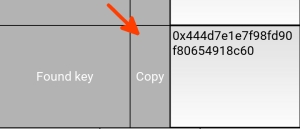
Press Fetch key. The key will appear in the Found key field, get it by pressing the Copy button.
Before inserting this key, you will need to remove 0x a the beginning of the key
1.2 Obtaining auth key (old method)
If the Mi Band is already connected via the original Zepp life(MiFit) app, the band should be unpaired and the original app should be uninstalled.
Download and install the latest patched MiFit (for Xiaomi) or Zepp(for Amazfit) app from this website https://www.freemyband.com/ .This app allows to generate device authentification code required in the below steps. Alternative links to patched application for MiBandsMiFit, for AmazfitZepp.
Login into the MiFit(or Zepp in case of Amazfit) with email and password.Create an account if necessary.
Pair your smartband with modified MiFit(or Zepp). For this go to Profile tab and click on Add device button.
Enable band visibility in the MiFit(or Zepp) settings. If you don’t have this option, make sure you have set your age in the account to 18 and above.
(optional) Now you can uninstall modified MiFit (or Zepp) application and install official application or any other APK you like to use together with your device. If you would use official Mi Fit(or Zepp) application, you would need to Login into the Mi Fit(or Zepp)with the email account which was used with the patched application.
MiBand2 and MiBand3
The Obtaining auth key phase for these devices can be skipped because it is required manual authentificatin
2. xDrip+ configuration
Install xDrip with a small modification from the followinglink. In the nearest future, it would be possible to use official xDrip. Upd. 10.07.2022 The required fix were added to the official xDrip, so you can install the latest nightly build official xDrip
Go to Settings -> Inter-app settings and enable Broadcast Service API checkbox
That’s all for xDrip. But if you had the watch previously configured in xDrip. Go to Settings -> Smart watch feature -> MiBand and disable “Use Miband” checkbox (this is an outdated feature)
Switch on Enable service checkbox on the main screen and allow all permissions that would be requested.
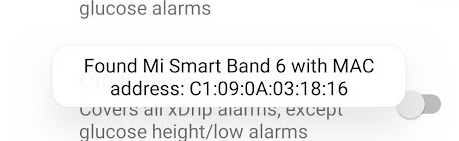
After this, in most cases, the watch should be automatically found and you will see a notification with your device name. The MAC address should be populated automatically. If this happens, you can skip the next step.
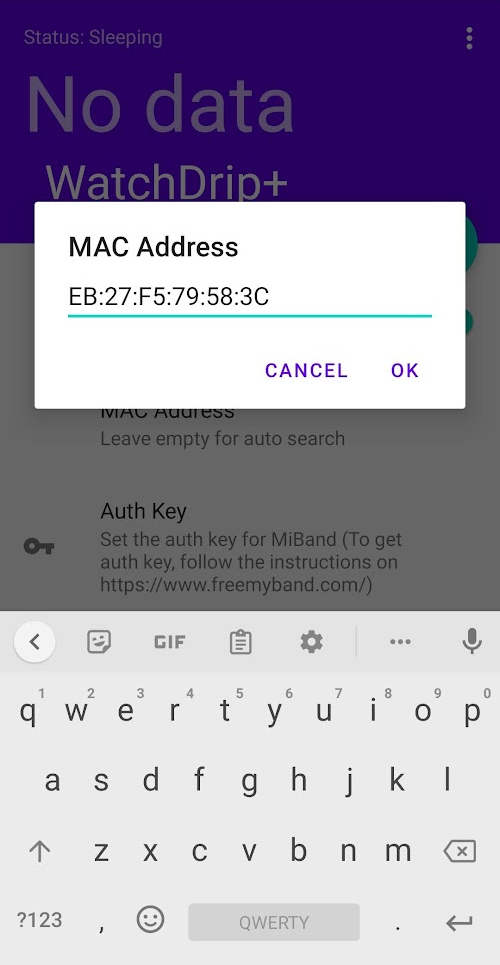
If your watch was not found or found the wrong device, you can try to clear Mac Address field to retry autosearch or enter the device MAC address manually. The MAC address should look like this FF:EE:DD:CC:BB:AA , 6 two-digits hex values, semicolon-separated.
The device MAC address can be found in the application:
4.1 In MiFit, switch to Profile tab, open device settings, scroll to the bottom of the screen. Long tap on the MAC field to copy it to the buffer, after this. 4.2 In Zepp, switch to Profile tab, open device settings -> About This Device . Long tap on the MAC field to copy it to the buffer.
At this step, the device required authentification. On MiBand2 and MiBand3, you should approve authentification by touching the button on the device screen. For the rest devices, you don’t need to do anything. Normally auth key should be automatically extracted from the file generated by the patched Mi Fit(or Zepp) application. And you will see the toast message like this:
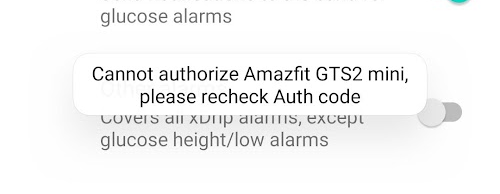
If authentification fails :
4. If authentification fails, there may be several reasons:
Make sure the app connecting to the right device (compare your device MAC and MAC used in WatchDrip). If they are different, enter the MAC address manually as described above.
Try to enter the authentication code manually. The authentification code generated by the patched app can be found in /sdcard/freemyband folder. You should open the wile with the corresponding to your device MAC. For example, if your device mac, FF:EE:DD:CC:BB:AA, the file should be mibandFFEEDDCCBBAA.txt. When you open this file with a text editor there should be a text like this FF:EE:DD:CC:BB:AA;5599f3acb91e02cfbf86b4faeb5652a4 . The code after semicolon, would be your device auth key: 5599f3acb91e02cfbf86b4faeb5652a4 . You need to copy this text and enter it into Auth Key field in WatchDrip+ app.
Your authentification code was changed (which usually happens when resetting the watch to the default setting or using another login in mifift(zepp) app). Please obtain a new authentification code by repairing your watch with the patched app. Please note, that the device mac can be changed when you repair the device, so also recheck the mac address used by the app.
Once the device is connected and authenticated, wait for the next value in xDrip+, the watchface with xdrip data should be uploaded to your device.
It is also possible to force refresh watchface uploading by clicking the green Refresh button on the WatchDrip app main screen.
WatchDrip+ features
Main Settings
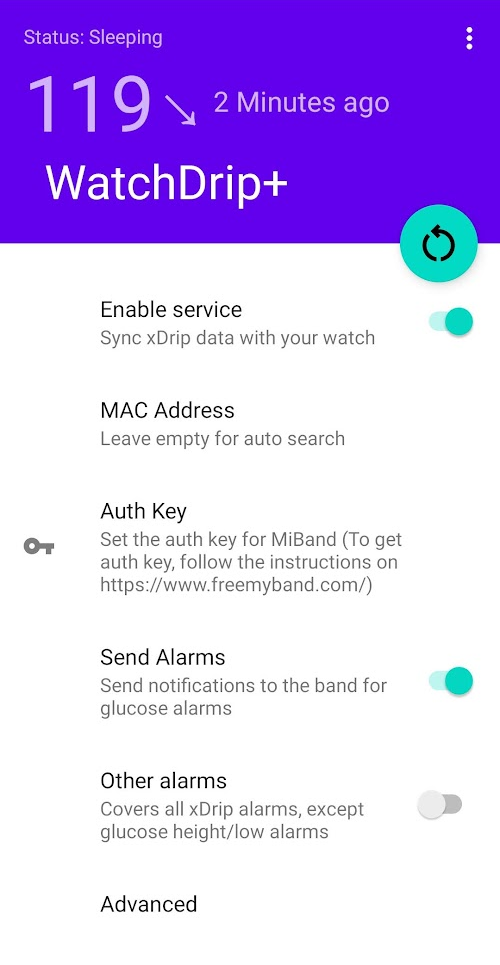
WatchDrip+ main screen
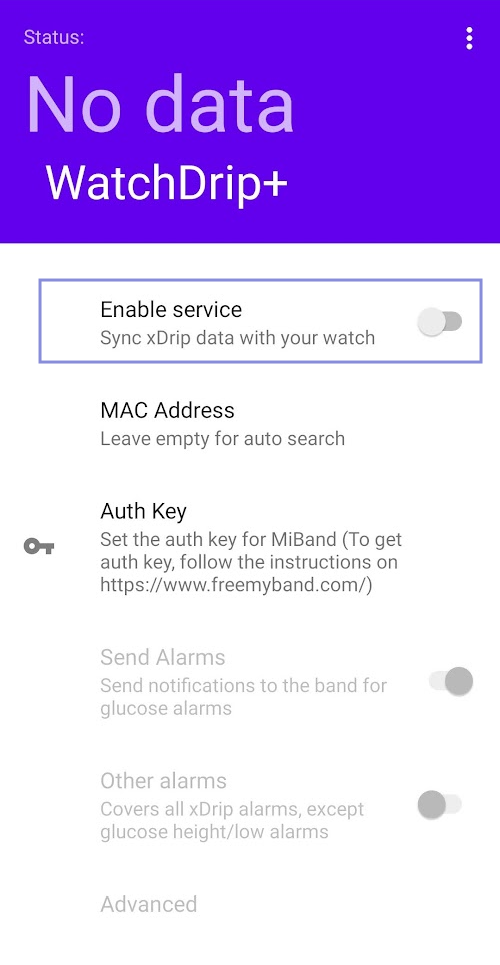
Enable service – You can enable and disable MiBand integration with this main switch. In this case, the application will stop communication with xDrip and your watch.
MAC Adress – your device MAC address, you can clear this field to autosearch supported device
Auth Key – The 32 characters authentication key used to authenticate the device. You can clear this field to let autosearch key from the file generated by patched MiFit(Zepp)
Send Alarms – Will send glucose alarms(low/high) to your device configured in xDrip settings
Other Alarms – Will send all alarms configured in xdrip, except glucose alarms (low/high)
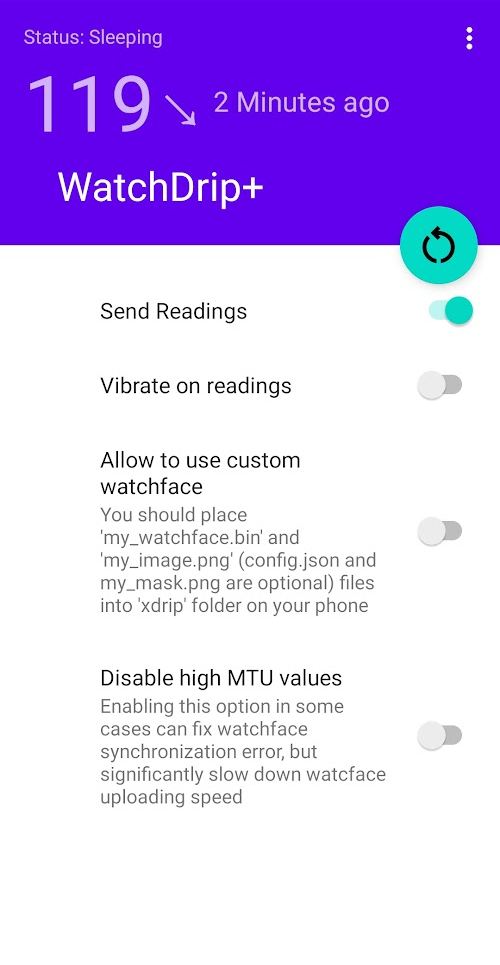
Advanced Settings
Send reading – You must enable this to have readings on your device. For devices that support watcfaces, the watchface would be uploaded. If the device battery charge is below 12% or weak BT connection, only BG notification would be received. The MiBand2,3 support only bg notification.
Vibrate on reading – Your device will vibrate after reading, useful mostly for debugging
Use custom watchface – You can create your own watchface and modify the background image using these features. Keep them disabled unless you have correctly set the files required in the phone xDrip folder. For tips and an examples look here.
Disable High MTU – can be used when experiencing watchface display issues.
WatchDrip+ changelog
If you like this project and want to thank an author for work done or want to support further development of features, become a sponsor on Patreon or Ko-fi
If you have some advices regarding features that you want to see, or want to see similar feature on some specific band type, please write them in the comment of the donation form. Thank you.
The latest watchdrip phone app can be found on my Patreon Page
Ver 0.2.6(21.6.2023)
Fixed slow wf uploading for some devices
Force new bg data from xdrip if there was no response for a long time
Fixed night mode
Fixed settings initialization
Hide notification badge
Migrate to Reactive Android with Android X support
Fixed alarm rejection issue, which may happen after the watch reconnection
Fixed authorization issue (restart authorization if it was unsuccessful)
Added receive AAPS external status line ( need a custom xdrip, or wait for merging PR )
Added add_treatments webservice command
Added graph webservice data
Added ‘condition_images’ into the config property
Added remote alert cancel handling
Ver 0.2(21.12.2022) (only for patrons, would be available for all 01.01.2023 )
Added Webserver support for ZEPP OS based devices
Added watchface catalog
Added Support for the multiple devices
Ver 0.1.3(30.06.2022)
Fixed graph update
Fixed miband5/amazfit5 lock icon inverse state on default watchface
Fixed the phone silence mode restoration after the alarm has been silenced
Ver 0.1.2(17.06.2022)
Fixed alarms issue
Added Italian translation
Ver 0.1.1(15.06.2022)
The initial version
Supported devices
MiBand 2 MiBand 3 MiBand 4 MiBand 5 MiBand 6 Amazfit GTR 47mm Amazfit GTR 42mm Amazfit GTR2 Amazfit GTR2e Amazfit GTS2 Amazfit GTS2e Amazfit GTS2 Mini Amazfit Band5 Amazfit Bip Amazfit Bip Lite Amazfit Bip S Amazfit Bip S Lite
During the Christmas and New Year holidays, I worked on integrating xDrip with the Amazfit GTS2 Mini clock. And finally, it is ready and I am happy to provide an updated version of the xdrip with Amazfit GTS2 Mini support.
Though a little late with congratulations, I wish you happiness, good health, and well-being from the bottom of my heart! Thank you all for your support.
Actually, the first attempts of integration for this watch were started at the beginning of the autumn, but it was interrupted because this watch had a vibration after the watch face uploading. But before the New Year holidays, I was informed that there no such vibration anymore. So I decided to buy this watch to finish the integration. According to my test, indeed there is no vibration in most cases, but sometimes it still can happen ( in my case this is an almost unnoticeable very slight vibration) . One of my subscribers has contacted amazfit support and it seems in the future version of firmware updates the amazfit developers will add the option to disable system vibration like it was made in GTR2/GTS2 watches.
The watchface uploading in my case takes 2-3 seconds if the watch is near the phone. But it can be much longer if your phone is located at 10-15 meters from the watch. In general, it looks like the Bluetooth connection is very weak on this watch especially if compare with mibands. The watch loose bt connection if my phone 20-25 meters away. With mibands i had a stable connection up to 60 meters.
At the moment, I can’t say about the battery life, since the beginning of work with the clock, they have not yet been discharged. 02.01.2022 the watch was charged to 100% and now, 13.01.2022 there are still 47% battery left.
upd. 22.01.2022 the battery was discharged to 10% (the level when watch stops receiving watcface). So with normal watch usage the autonomous time is 20 days
The watchface configuration remains unchanged and the same as for other Amazfit devices. The only addition is you should make sure there are no custom watchface installed on your watch so xDrip could upload own custom watchface. You can check and delete the custom watchface directly in the watch interface. Simply go to Settings -> Watchface menu and delete watchfaces by touching the trash bin icon.
Note every xdrip update contains support of all devices were added before.
Improvement Restore ringer mode if was clicked call ignore button during xdrip alarm on the watch because mifit will set silence mode and won’t restore it.
I’m glad to present a new Xiaomi MiBand6 (also known as the Xiaomi Mi Smart Band 6) integration for xdrip. The new version is already available for people who supports this project on patreon and would be available after 8.11.2021 for everyone.
Xiaomi managed to pack in more features while keeping the price as low as it always was, which I think makes this band ideal for glucose monitoring.
The watchface uploading for this band takes 1-2 seconds, which allow offering up to 10 days of battery life with active life tracking features. And I think it can last much more with the power saver mode, but I’ve not tested this at the moment.
This time, MiBand6 brings SpO2 monitoring that helps to monitor blood oxygen saturation levels, which is more important than ever.
I like this watch and hope you will like it too 🙂
I want to thank everyone who supported developing this integration with suggestions and donations.
Special thanks to Otto75so3e, mzst 123, Lukas Petro, István Ficsór, Felix Seidel, Aleandro Corallo, Gábor Vértényi, who supported me here almost from the beginning of this project
Dedicated thanks to Kichul Kim for the testing.
The configuration for MiBand6 is the same as for the previous versions. But at the moment it works only on the latest firmware. So before installing patched mifit, you should install official mifit and let update your band to the latest firmware version.
Since 1.0.4.1 MiBand6 firmware version, the MiBand developers has significantly changed the authentication mechanism. The new authentication can’t work stable if use MiBand6 with two different applications which share the same Bluetooth connection. So if you planning to use MiBand6 with MiFit or any alternative apk, you would need to downgrade device firmware below 1.0.4.1. Please note, the oldest firmware does not support the NFC feature
Mi Band 6 downgrade firmware procedure
WARNING: This instruction is only for expert users. Doing something wrong may stop band connect with official app / phone.
PREREQUISITES – IMPORTANT!
Ensure new firmware is fully installed correctly with official app (fw, res, font installed)
Ensure you know which account you have used to login with official app (where Mi Band 6 is currently paired). If you don’t know, unpair band, hard reset band (from band settings menu), reinstall official app and create a new account to pair band. Your official app account will be required later. If you don’t know the correct account the entire procedure will fails and your band will stop working
PROCEDURE
Install Notify app, pair the Mi Band 6 (“Mi Fit installed” status) and ensure the band is connected, then go on tools -> update firmware and choose the old version (the version below 1.0.4.1)
Use Notify app to install the old firmware only (you should see “connect to update” on band at the end). Do not try to install resources then.
Uninstall the official app.Do not open it, and do not allow official app to force update the firmware again.
Notice: by using the same account you will get the Mi Band 6 already paired. If you try use a different/wrong account, you will not be able get band working!
If old official app version doesn’t complete the firmware update automatically, open Notify app again and complete the update by uploading the resources. Hint: press reconnect bluetooth button on main left menu if Notify is not connected after reinstalling official app.
It’s done!
Xdrip integration apk changelog
If you like this project and want to thank an author for work done or want to support further development of features, become a sponsor on Patreon
If you have some advices regarding features that you want to see, or want to see similar feature on some specific band type, please write them in the comment of the donation form.
Ver 0.6.3(03.12.2021)This version contains the latest hotfix for the Dexcom followers issue from the official xdrip branch.
I’m glad to announce a new version of xdrip which brings Amazfit GTR2(GTR2e) and GTS2(GTS2e)(not well tested at the moment) devices support.
Watchface for GTR2e
It was not easy to make such integration because there were no watcface editors for these devices. So at first, i would need to create an editor. After reverse-engineering a lot of standard watchfaces I’ve understood the watcface format and made a watcface packer/unpacker and watcface editor for the second generation amazfit devices. The editor was shared here https://amazfitwatchfaces.com/forum/viewtopic.php?f=29&t=1798 . After some time, SashaCX75made a GUI for the editor https://amazfitwatchfaces.com/forum/viewtopic.php?f=29&t=1888
So now people can easily create their own custom watchfaces for these devices.
To create watcfaces for these devices i actively used the new features available on the second generation devices (system fonts and dynamical object rendering). By using these features i achieved super fast watcface uploading, which takes seconds. The watcface uploading almost not noticeable now.
The watcface for GTR2(2e) also support AOD(Always on Display) feature which can be enabled on the watch settings. This feature allows you to always display your glucose data on the watch screen.
By default, these watches have a vibration that happens after every watch face uploading (like it was on the GTR and GTS) but luckily, on the second watch generation, the vendor made an option that allows disabling this vibration. Everything you need to do is to open Settings menu on your watch. then go to Vibration and disable System vibration option.
Note
When you activate workout on the device, it is impossible to update watcface on the watch.
Amazfit GTR42 support
As a bonus was added Amazfit GTR42 support. But this device has the same disadvantages as GTR47. It has a slow watcface uploading time (about 15 seconds) and there is no way to disable vibration after watcface uploading.
Watchface for GTR42mm
The xdrip configuration remains the same as for other Amazfit devices, see my article on the blog .
As always, thanks to everyone who supportedthis project.
Xdrip huami integration apk changelog
If you like this project and want to thank an author for work done or want to support further development of features, become a sponsor on Patreon
If you have some advices regarding features that you want to see, or want to see similar feature on some specific band type, please write them in the comment of the donation form.
This apk is a dedicated xdrip version based on carelink xdrip source code and merged with the latest changes from my project . Please note this version based on relatively outdated xdrip version
Ver 0.5.3(31.08.21)
Fixed compilation issues ( BG Data table or Calibration Data table should work now)
Some code changes related to the xdrip merge request (hope this code will be merged into official xdrip application)
Synchronized with the latest official xdrip nightly build (18.08.21)
Ver 0.5.1(02.08.21)
Fixed watcface generation on Andriod 11
Fixed Amazfit BIP S watchface (wrong Sat and Sun weekdays order)
Synchronized with the latest official xdrip nightly build (02.08.21)
Ver 0.5.0(28.06.21)
Added Amazfit GTR2(2e) support (thanks Kichul Kim for the testing)
Added Amazfit GTS2(2e) support (not well tested at the moment)
Added Amazfit GTR42mm support (thanks Raül Aguado for the testing). Please note it makes a vibration after every watchface synchronisation which not possible to disable.
Fixed Bip and Bip S watchface (wrong Sat and Sun weekdays order)
Improvement. Watchface configurator was sufficiently improved so it is possible to make more complex xdrip watch faces.
Synchronized with the latest official xdrip nightly build.
For the last 2 month, i’ve been working on extending integration for Amazfit devices. And it looks like it was successfully done.
Such incredible extension has been sponsored by people from Patreon. So I want to say a big thank you for mzst 123, Otto75so3e, Lukas Petro, kyungmee Yoo, Gábor Vértényi, Michalis Velona, Felix Seidel, Alberto HD, Kichul Kim and other people who supported this project on Patreon. The collected money was spent on purchasing the new devices mentioned above and implementing integration.
According to my pool on Patreon, the first device for integration was Amazfit GTR, so I ordered this watch and started reverse-engineering the watcface structure.
When this watch has arrived, I already finished some preparations for watchface and finally started implementing watchface uploading protocol and testing it on the real device.
I got my first working prototype two weeks later, but, wathcface uploading was too slow to be used for continuous monitoring. The uploading process took about 40-50 seconds and in addition, there was a double vibration after each watchface uploading. So I spend another two weeks partially solve these problems and design a nice watchface (at least I hope so 🙂 ).
After all my efforts, the best I could achieve for this watch is the watchface uploading which takes 12-15 seconds, and partially disabled vibration after the watchface uploading (sometimes a short vibration may occur, this is related to the Bluetooth signal strength) .
Unfortunately there no way to upload watcface faster on this watch. Such slow uploading speed is dictated by the watchface structure implemented by the watch developers in this model and screen size which much bigger than any miband. I have already done all possible solutions for the fastest loading possible.
Amafit GTR watcface
When I finished integration for GTR, the GTR2 was released. But there was no information about watcface structure and communication protocol. So I’ve decided to spend some time on reverse-engineering GTR2(also GTS2 and GTS2e) watchface format and made a first watchface editor tool for this watch It looks like the second generation should suits better for xdrip needs. At least they allow disabling system vibration which happens after every watch face uploading. I only would need to reverse-engineer the Bluetooth communication protocol for this watch. So most if there would be many requests, the xdrip will support these watch models too.
In addition to the Amazft GTR integrations, there was implemented a new feature, the watcface customizator.
This customizator allow displaying almost any content from the xdrip on the watcface. Previously all xdrip data was hardcoded, but now it would be possible to choose what information need to display and where.
This is how it works:
The xdrip watchface consists of two parts . The first one is the watcface itself which contains all elements (static background, hour digits, heart rate info etc). To create a watchface base for GTR, you can use the following tool. I also used this tool to create watchface structure (but it was a little modified to compress watcface as much as possible for faster transfer) .
And the second part of the watchface is the background which generated in the xdrip and injecting into the watchface dynamically. Previously the appearance of this dynamical part was not possible to change, but now you can. So now it is possible to achieve almost any layout. Later I’ll create a dedicated article on how to create own watchafaces for xdrip.
Amazfit Bip support
Next, after GTR I bought Amazfit Bip Lite and added support for Amazfit Bip Lite and Amazfit Bip watch models.
Watchface for Amazfit Bip
The Amazfit BIP watch is a good alternative for old Pebble watches. This watch has cool features such as a Transflective Screen which means your glucose and sports data can be seen clearly even under bright sunlight by simply raising your hand.
Also, it has an amazing battery life, up to 45 days according to device specification, but with xdrip integration, according to my tests, the real battery life would be about 10 days.
And finally, it has the smallest wrist girth size I’ve seen. It is even smaller than MiBand 4 which means it ca better suits for kids.
Configuration
The configuration for all these devices is the same as for Amazfit Band 5, see my article on the blog
Xdrip huami integration apk changelog
If you like this project and want to thank an author for work done or want to support further development of features, become a sponsor on Patreon
If you have some advices regarding features that you want to see, or want to see similar feature on some specific band type, please write them in the comment of the donation form.
Fixed Amazfit Bip S support. (Thanks to Jimmy Fox for testing )
Synchronized with the latest xdrip
Ver 0.4.1.1(13.03.2021)
Fixed. Amazfit Bip support.
New. Added support of Amazfit Bip S (not tested on the real device, let me know if it does not work)
Synchronized with the latest xdrip
Ver 0.4.1(04.03.2021)
New. Added support of Amazfit Bip and Bip Lite support.
Synchronized with the latest xdrip
Ver 0.4(11.02.2021)
New. Added support of Amazfit GTR device.
New. Watcface configurator.
Removed option to show/hide graph. For now the apk file contain only graph watcface. But it is possible to upload custom watcface to the xdrip folder. A little later i’ll prepare the watcface without graph which can be uploaded as a custom watcface.






 Artem Watchdrip blog